How to create database MySQL with Docker
Introduction
In this article I’m going to show how to create a local MySQL database with Docker on your Windows. It is necessary to have the latest version of Docker installed on your machine.
1st step: Download the MySQL image
Let’s download the latest MySQL image to the Docker hub, type the following command below:
docker pull mysql/mysql-server
2nd step: Execute the container
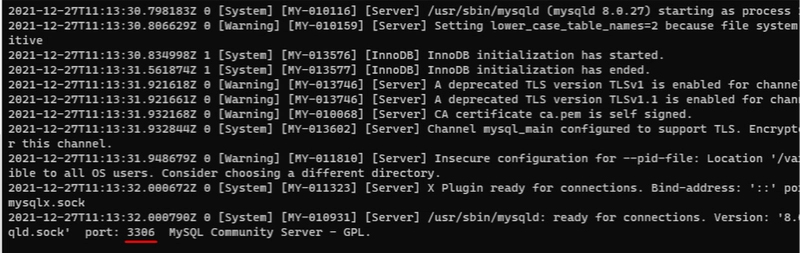
Let’s execute the container for the image that we downloaded. At first, we won’t configure environment variables, at the moment just execute MySQL for default users without a password. Before executing the command, you can create a directory with the name mysql. Write the command below in your terminal.
Note: create only the directory C:/mysql by default, MySQL needs to have the folder /var/lib/mysql, this directory is where MySQL will save your database.
Write the command below
docker run -e MYSQL_ALLOW_EMPTY_PASSWORD=yes -v C:/mysql:/var/lib/mysql mysql

3rd step: Getting the container’s IP
To discover the container IP, write the command docker container ls to verify the containers that are running and copy the ID of the container, using the command below
docker container inspect ID_CONTAINER

4th step: Access database from container
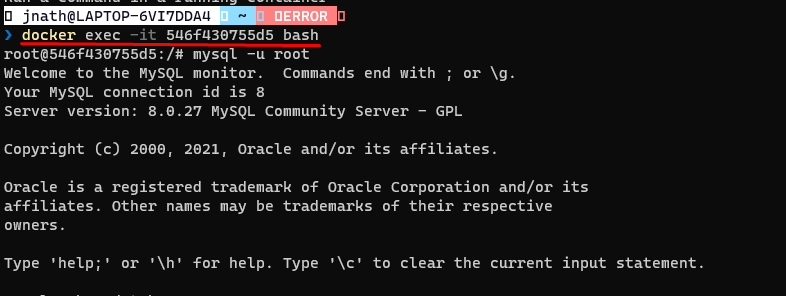
To access the database through the container, we need to go inside the container, so write the command below
docker exec -it ID_CONTAINER
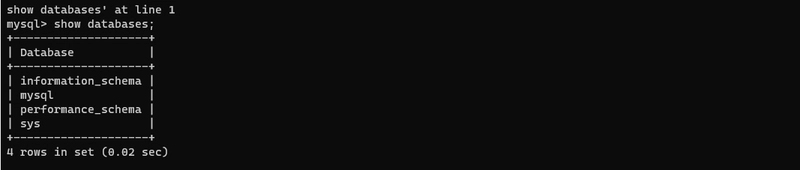
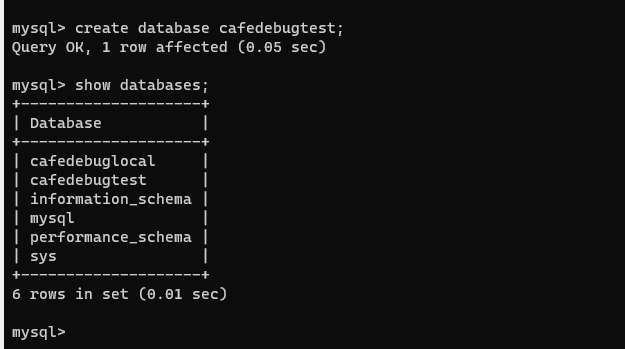
Done. We have a MySQL database in a Docker container. Now you can create your database and tables.
Conclusion
This is a simple example for you to create a database with Docker. Of course in this example I created a simple database, but you can configure user and password in your database.
Write it down so you don’t forget.